Splunk Basic Commands

Search for all indexes
index=* | stats count by index


Search for all sources
|metadata type=sources index=*


Search for all sourcetypes
|metasearch index=app_idm sourcetype=* | stats count by index, sourcetype | fields - count


Search for all servers + sources + sourcetypes
index=app_idm | stats values(source) as sources ,values(sourcetype) as sourcetype by host

Control-M Basic Commands

Create/Edit User
eu sample_user grace- audit(all) interval(0) inactive(10000) comment('Generic Account') name('User Name') owner(acx) unix(gecos('sample_user') homedir(/home/sample_user) pgroup(sample_group) userid(123456))


Create Group
eg sample_group audit(success failure) owner(admin) unix(groupid(1234))


Join user to the group
j sample_user group(sample_group) owner(admin) unix


New Rule for root usage
er sudo sample_user audit(success failure) defaccess(n) owner(admin) password- targuid(root) data('/bin/su - sample_user')


Grant sudo Access
auth sudo sample_user gid(sample_group) access(x)


Reference Links

Selang Reference Guide

New Office Setup

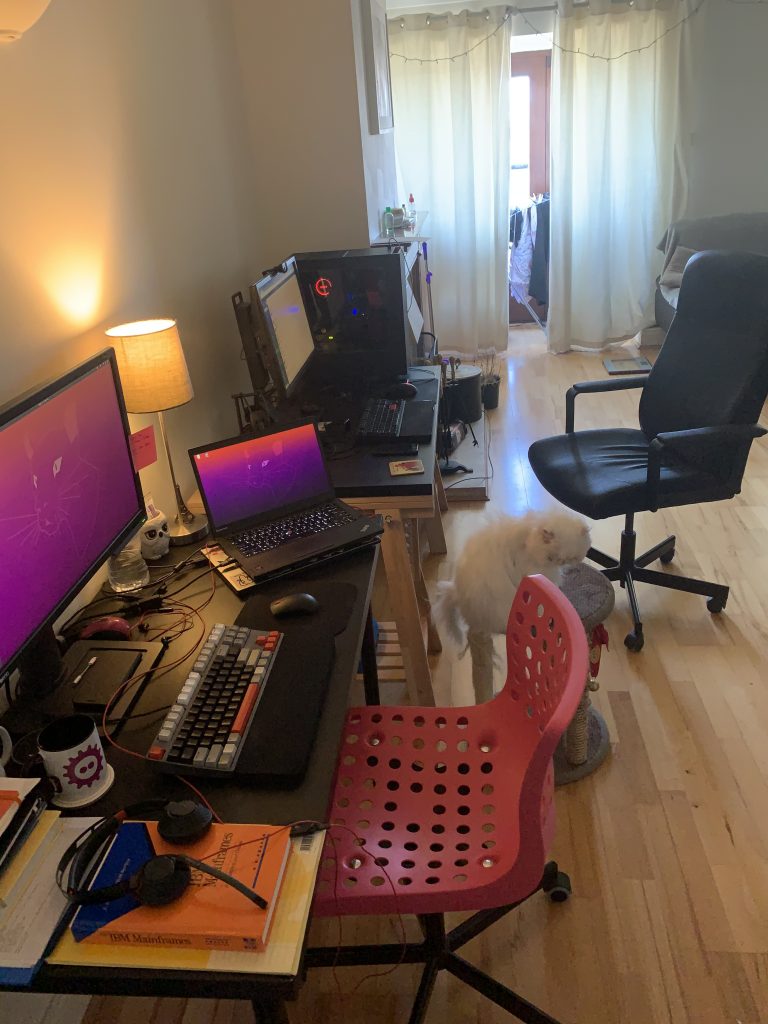
Here is the new office setup with a lot of changes since I moved to a new house.

Starting with the new desk that I got from Jarvis, it is much bigger than the old Ikea one, more stable, less noisy and able to stand up. Curtains are not in the best setup yet, I am working on this!

How to Migrate a WordPress MySQL Database

I very often have to migrate MySQL Databases as I like to spend some time playing with WordPress. So here is an easy and quick way to migrate your DB and avoid manual work when moving a blog from different providers/servers.

Pre-Requisites

  • You must have a pre-configured MySQL server, database and user already created in the destination(new) server
  • You can either use command line or PHPMyAdmin if you have available in the source server
  • Don´t forget to backup your wordpress files/images

From PHPMyAdmin

1. Access your DB

2. Navigate to Export -> Select ¨Quick” and ¨Go¨

3. You will have a .sql file downloaded

From Command Line

1. Access your server where you are migrating from

2. Create WordPress database backup

mysqldump -u [user] -p [database_name] > your_backup_name.sql


3. Create WordPress files backup

tar -zcvf your_file_name.tar.gz /target/directory


4. Restore WordPress DB on the new server

mysql -u [user] -p [database_name]


5. Restore WordPress files on the new server

tar -zxvf [archive_name].tar.gz --directory [target_directory]

Including New Apps in the Search engine on Ubuntu

If you are experiencing issues when trying to search for your recently installed software on Ubuntu, try to create this file with all the info about your software.

[Desktop Entry]
Version=x.y
Name=ProgramName
Comment=This is my comment
Exec=/home/alex/Documents/exec.sh
Icon=/home/alex/Pictures/icon.png
Terminal=false
Type=Application
Categories=Utility;Application;

It needs to be placed at this path:

/usr/share/applications/

Example:

root@camistp:~# cat /usr/share/applications/x3270.desktop
[Desktop Entry]
Type = Application
Name = x3270
Comment = x3270
Exec = x3270
Icon = /usr/share/doc/x3270/x3270-icon2.xpm

How to use Lets Encrypt (Debian / Ubuntu)

Let’s Encrypt is an SSL certificate authority managed by the Internet Security Research Group (ISRG). It utilizes the Automated Certificate Management Environment (ACME) to automatically deploy free SSL certificates that are trusted by nearly all major browsers.

1. Update/Upgrade your system

sudo apt update && sudo apt upgrade


2. Download and Install Lets Encrypt

sudo apt-get install git


3. Download a clone of Let’s Encrypt from the official GitHub repository. /opt is a common installation directory for third-party packages, so let’s install the clone to /opt/letsencrypt:

sudo git clone https://github.com/letsencrypt/letsencrypt /opt/letsencrypt


4. Navigate to the new /opt/letsencrypt directory:

cd /opt/letsencrypt


5. Create the certificate

Run Let’s Encrypt with the --standalone parameter. For each additional domain name requiring a certificate, add -d example.com to the end of the command.

sudo -H ./letsencrypt-auto certonly --standalone -d example.com -d www.example.com

If you receive this error, stop your Apache server and try again.

Problem binding to port 80: Could not bind to IPv4 or IPv6.

Agree to the Terms of Service and specify if you would like to share your email address with EFF:

-------------------------------------------------------------------------------
Please read the Terms of Service at
https://letsencrypt.org/documents/LE-SA-v1.2-November-15-2017.pdf. You must
agree in order to register with the ACME server at
https://acme-v01.api.letsencrypt.org/directory
-------------------------------------------------------------------------------
(A)gree/(C)ancel:


If all goes well, you should receive a result like this:

Saving debug log to /var/log/letsencrypt/letsencrypt.log
Plugins selected: Authenticator standalone, Installer None
Obtaining a new certificate

IMPORTANT NOTES:
- Congratulations! Your certificate and chain have been saved at:
/etc/letsencrypt/live/example.com/fullchain.pem
Your key file has been saved at:
/etc/letsencrypt/live/example.com/privkey.pem
Your cert will expire on 2019-09-27. To obtain a new or tweaked
version of this certificate in the future, simply run
letsencrypt-auto again. To non-interactively renew *all* of your
certificates, run "letsencrypt-auto renew"
- If you like Certbot, please consider supporting our work by:

Donating to ISRG / Let's Encrypt: https://letsencrypt.org/donate
Donating to EFF: https://eff.org/donate-le


6. Configure your Virtual Host, it should be similar to this, one entry for port 80 and a duplicated block for port 443:

<VirtualHost *:80>
ServerName example.com
ServerAlias www.example.com
ServerAdmin example@email.com
DocumentRoot /var/www/html/example/src/wordpress
ErrorLog ${APACHE_LOG_DIR}/error.log
CustomLog ${APACHE_LOG_DIR}/access.log combined
</VirtualHost>

<VirtualHost *:443>
SSLEngine On
SSLCertificateFile /etc/letsencrypt/live/example.com/fullchain.pem
SSLCertificateKeyFile /etc/letsencrypt/live/example.com/privkey.pem
ServerName example.com
ServerAlias www.example.com
ServerAdmin example@email.com
DocumentRoot /var/www/html/example/src/wordpress
ErrorLog ${APACHE_LOG_DIR}/error.log
CustomLog ${APACHE_LOG_DIR}/access.log combined
</VirtualHost>


7. Check for the certificated domains:

sudo ls /etc/letsencrypt/live


8. All your certificated sites should be under this path, you also can check with this command:

./certbot-auto certificates

Saving debug log to /var/log/letsencrypt/letsencrypt.log

- - - - - - - - - - - - - - - - - - - - - - - - - - - - - - - - - - - - - - - -
Found the following certs:
Certificate Name: example.com
Domains: camilalui.com
Expiry Date: 2019-09-27 16:01:19+00:00 (VALID: 89 days)
Certificate Path: /etc/letsencrypt/live/camilalui.com-0001/fullchain.pem
Private Key Path: /etc/letsencrypt/live/camilalui.com-0001/privkey.pem
Certificate Name: camilalui.com
Domains: example.com www.example.com
Expiry Date: 2019-09-27 09:19:23+00:00 (VALID: 89 days)
Certificate Path: /etc/letsencrypt/live/example.com/fullchain.pem
Private Key Path: /etc/letsencrypt/live/example.com/privkey.pem
Certificate Name: food.camilalui.com
Domains: web2.example.com
Expiry Date: 2019-09-27 16:37:52+00:00 (VALID: 89 days)
Certificate Path: /etc/letsencrypt/live/web2.example.com/fullchain.pem
Private Key Path: /etc/letsencrypt/live/web2.example.com/privkey.pem
- - - - - - - - - - - - - - - - - - - - - - - - - - - - - - - - - - - - - - - -


9. Restart your Apache to apply your changes

service apache2 restart


10. Test your SSL website use:

https://www.ssllabs.com/ssltest/


For more information: Let’s Encrypt Homepage

FOSDEM 2019

Last weekend I attended FOSDEM 2019 and I was amazed how big is this.

Since 2001, FOSDEM is a free and non-commercial event organized by volunteers for software developers to meet, share ideas and collaborate. Every year, thousands of developers of free and open source software from all over the world gather at the event in Brussels. It’s widely recognized as the best such conference in Europe.

Attending to the FOSDEM 2019 conference, we could have a deeply immersion in many subjects from more than 728 speakers, 776 events, and 62 different tracks.

The event itself starts only on Saturday, but at day before and after, you have the opportunity to attend to additional workshops, like Pre and Post-FOSDEM events, plus lots of other conferences awareness around the world. So it’s a great opportunity to catch up with the developers and sysadmins community and see what’s is going on at moment. The experience to be there in person is unique!

Also, all the speeches are recorded (automated!) and if you missed any speech that you wanted to watch, you can watch the videos anytime you like. I had a friend speaking on Saturday, and also anyone who wishes to give a speech is free to submit.

 Picture: Janson Room


FOSDEM

https://fosdem.org/

Videos

https://video.fosdem.org/

Pre and Post-events

https://www.eventbrite.com/e/pre-fosdem-mysql-day-2019-tickets-53287378985#

https://jenkins.io/blog/2019/01/21/fosdem-2019/

Important to know

  • Always try to wear comfortable and light clothes/shoes as you are going to walk around a lot
  • Mind your belongs, lots of pick pockets around and they can get very aggressive sometimes, specially late night
  • Use your time to spend meeting new friends and networking, thanks to the technology, you’ll have time to check out the speeches you couldn’t attend
  • There are many food trucks with affordable price inside the University, You’ll spend some time at the queue but it’s worth waiting for